
Recolour a ball
Short version
ball_basic_01.model slot lambert1 uses basic_ball_01.material_instance, whose albedo is
basic_ball_bc.tga.import. Open that texture, Export PNG, recolour at the same size, then right-click it ›
Replace ▸ Replace texture with image…. The replace keeps the texture’s ID, so every material using it picks it
up. Run.
The standard ball is red and white. By the end of this it’ll be whatever you paint it, in every match.
1. Follow the chain to the texture
Section titled “1. Follow the chain to the texture”The ball’s colour comes from a chain of files: the model names a material for each part, and the material names its textures. See Materials and textures for the why.
- In the Project window, search
ball_basic_01 ext:modeland click ball_basic_01.model. The Inspector lists its two slots:lambert1, the ball itself, using basic_ball_01.material_instance, andGlow. - Click the button beside
lambert1’s material to open it. Under Texture bindings, thealbedoslot, the colour, holds basic_ball_bc.tga.import.
The material’s texture bindings: albedo, normals, roughness_metal_ao, emissive and team_emissive, each
naming a texture. albedo is the one to change.
2. Export the texture
Section titled “2. Export the texture”Search basic_ball_bc in the Project window and double-click basic_ball_bc.tga.import to open it. Click
Export PNG at the top right and save it somewhere handy.
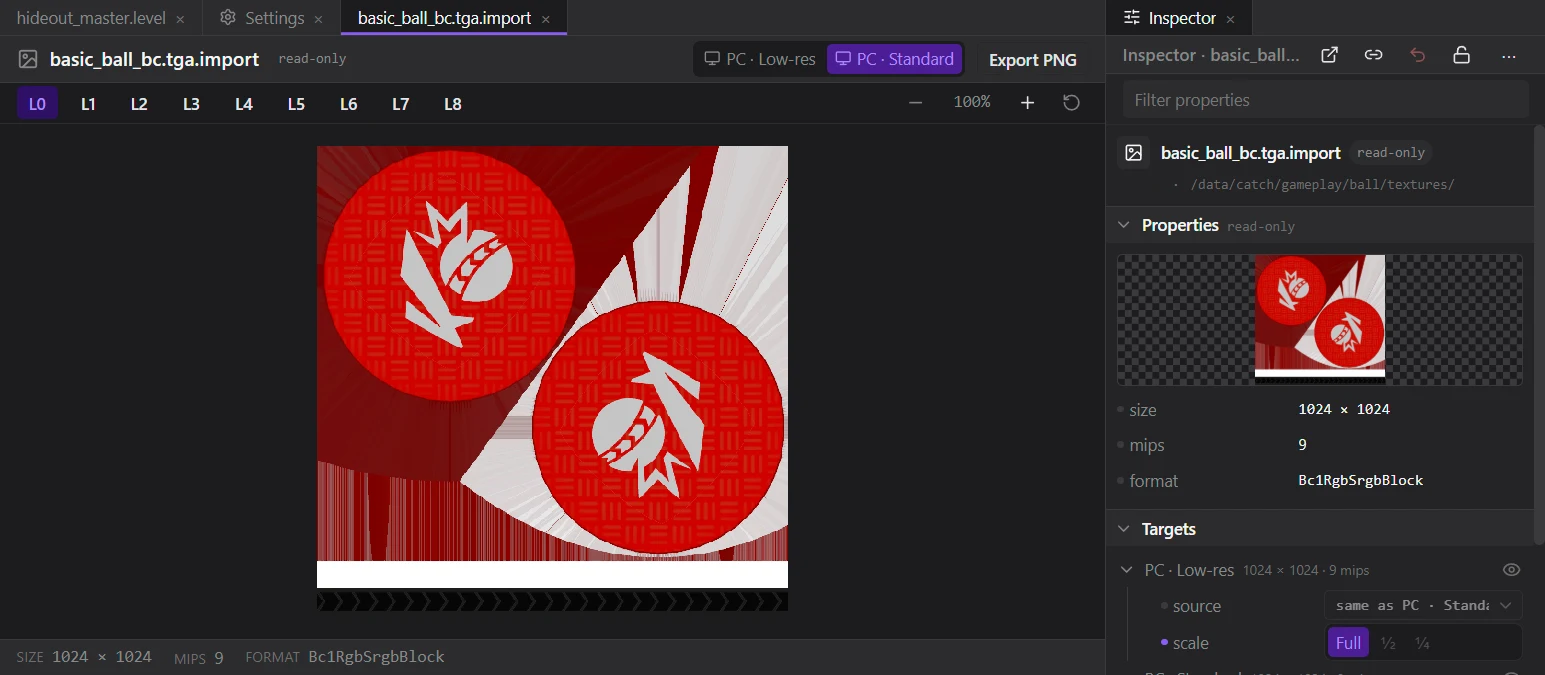
- Export PNG saves the texture as an image.
3. Paint it
Section titled “3. Paint it”Open the PNG in your image editor and recolour it. A few tips:
- Keep the size: 1024 × 1024. The layout has to stay where it is.
- Recolour, don’t redraw: a hue shift or a colour fill keeps every detail in place.
- Leave the edges of each shape where they are, or the colour spills onto the wrong part of the ball.
Save it as a PNG.
4. Replace the texture
Section titled “4. Replace the texture”Back in Studio, right-click basic_ball_bc.tga.import in the Project window and choose Replace ▸ Replace texture with image…, then pick your PNG.
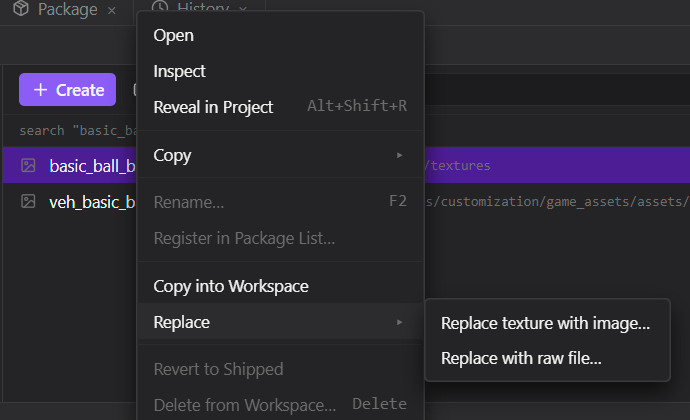
The texture tab shows your colours, and the file is now marked as yours. Open Package: basic_ball_bc.tga.import
is listed as a changed file.
Replacing keeps the texture’s identity, so every material that used the old image now uses yours. There’s nothing else to re-link.
5. See it in the game
Section titled “5. See it in the game”Press Run in the Package window, start any match, and pick up a standard ball.
Every standard ball in every match wears your colours.
What just happened
Section titled “What just happened”You overrode one shipped texture. Nothing about the ball’s model or material changed: they still name the same texture, which is now yours. So the change reached every standard ball at once, and a change to a shared texture needs care. Find out what uses a texture before replacing it.
To undo it, right-click the texture and choose Revert to Shipped.
Where to go next
Section titled “Where to go next”- Give only some things a new look: see Change one thing, not everything.
- Tutorial: Bring in your own model.