
Open the game in Studio
What you need
Section titled “What you need”- Knockout City: Private Server Edition, installed. It comes as two folders side by side:
KnockoutCity(the game) andKnockoutCityServer(the server). Studio works with both. - Studio, on Windows.
- An empty folder for your mod. This becomes your workspaceworkspace: Your mod in Studio: every file you added or changed, kept apart from the game's own files until you install or export it..
Open the game
Section titled “Open the game”The first time Studio starts, it asks for two folders:
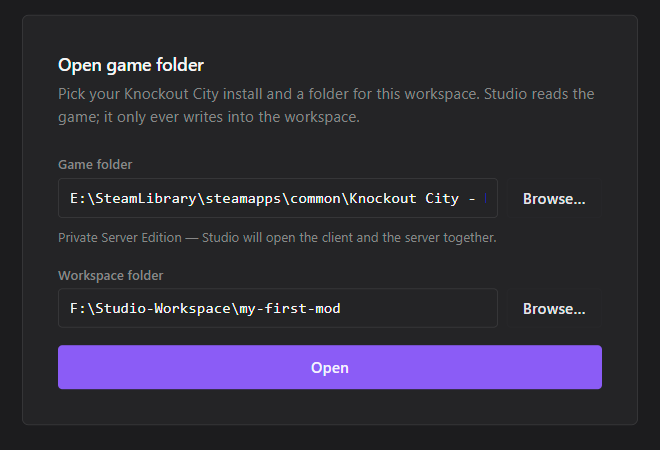
- The game folder: the Private Server Edition's folder, the one holding both KnockoutCity and KnockoutCityServer.
- The workspace folder: where your mod lives. Pick an empty folder for a new mod.
-
Next to Game folder, click Browse… and pick the Private Server Edition’s folder. When Studio recognises it, the line under the field says Private Server Edition — Studio will open the client and the server together.
-
Next to Workspace folder, click Browse… and pick an empty folder, or a workspace you made before. The folder’s name becomes your mod’s name.
-
Click Open. The first open reads the whole game, about a hundred thousand files, which takes a few seconds.
Studio remembers both folders. Next time, press Open. To switch to another mod later, use File▸Open Workspace….
What Studio touches
Section titled “What Studio touches”Studio reads the game and only writes into your workspace. Everything you change stays in the workspace folder until you ask for it to go somewhere else:
| When you | Studio writes to |
|---|---|
| Edit, create, import, save | Your workspace only. |
| Install & Test or Run | The game’s and the server’s folders, so the game loads your mod. |
| Clean Install | The game’s and the server’s folders, removing every mod file from both, other mods’ too. It asks first. |
| Export Content Patch | A folder you choose, holding the files to give a server host. |
So you can’t break your game by editing. The only steps that touch the game’s folders are the ones that say so, and Clean Install takes everything back out.
Where to go next
Section titled “Where to go next”A tour of the window: what every part of Studio is for.