
Creating, moving and replacing files
Create a file
Section titled “Create a file”Assets▸Create… CtrlN (also the Create button in the Project window) opens a list of every kind of file Studio can make:
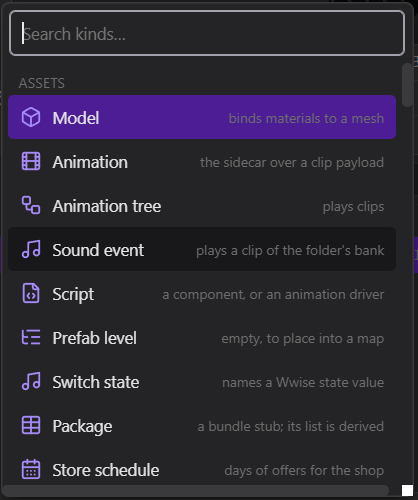
Type to narrow it, pick a kind, give it a name, and the file is made at once in the folder you’re in, filled with sensible defaults. Studio selects it so the Inspector shows its fields; there’s no separate “save” for a new file.
A few kinds can’t be made empty, because they have to point at something: a model needs a mesh, an animation tree needs clips. For those Studio asks for the missing piece first.
Kinds Studio can’t write yet are listed at the end, greyed out, so you can see what exists.
Where files go
Section titled “Where files go”A new file goes in the folder the Project window is showing. You can make files anywhere under data, including
the game’s own folders, next to what they belong with. When there’s no sensible folder, Studio uses your workspace’s
own folder.
A path the game already uses is refused. To change a shipped file, edit it instead: the first change makes your copy. See Shipped files and yours.
Edit a file
Section titled “Edit a file”Select any file and the Inspector shows its fields. Change one and the file changes. That works for shipped files too, which get copied into your workspace on the first change.
Some files also open as a tab with a viewer (double-click them): a model shows in 3D, a texture as an image, a script in an editor, a store schedule as a calendar.
Move and rename
Section titled “Move and rename”Drag a file you made to another folder, or rename it (Edit▸Rename… F2). References follow automatically, because they use the file’s identity, and Studio updates the few places that name a file by its path. It’s one step, and one undo.
You can only move and rename files you made. The game’s own files stay where the game expects them.
Replace, revert, delete
Section titled “Replace, revert, delete”| To | Use | Works on |
|---|---|---|
| Rebuild a file from a new image or GLB, keeping everything that uses it | Assets▸Replace | files made from an image or GLB, and shipped textures, meshes and animations |
| Put a shipped file back as it shipped | Assets▸Revert to Shipped | shipped files you changed |
| Remove a file you made | Assets▸Delete from Workspace… | your own files only |
| Bring the game’s file into your mod unchanged | Assets▸Copy into Workspace | shipped files |
Where to go next
Section titled “Where to go next”Importing: bringing in images, audio and 3D models.