
Materials and textures in Studio
Read Materials and textures first for what these are. This page is about working with them.
Find a model’s materials
Section titled “Find a model’s materials”Select a model (a .model file, or an entity with a model component) and its Inspector lists its slots, each
with the material it uses. The button beside a slot’s material opens it.
A material in the Inspector
Section titled “A material in the Inspector”Select a material instance and the Inspector shows, top to bottom:
- material: the shader it’s built on.
- How it’s drawn: render_type (opaque, blended, additive…), shadow_casting, cull_mode.
- Texture bindings: one row per slot the shader has, each with a texture and a sampler.
- Uniforms: the values the shader reads, such as
color,uv_scaleand the emissive settings.
To change a slot’s texture, drag a texture from the Project window onto its field, or use the picker beside it. To reset a field, use its reset arrow: it goes back to the shipped value, or to the shader’s default for a material you made.
Change one thing, not everything
Section titled “Change one thing, not everything”A material is often shared by many models, so changing it changes all of them. To change one model only:
- Make a new material: Assets▸Create… CtrlN › Material instance, on the same shader.
- Set its textures and values.
- On the one model, point its slot at the new material.
Textures
Section titled “Textures”Double-click a texture to open it:
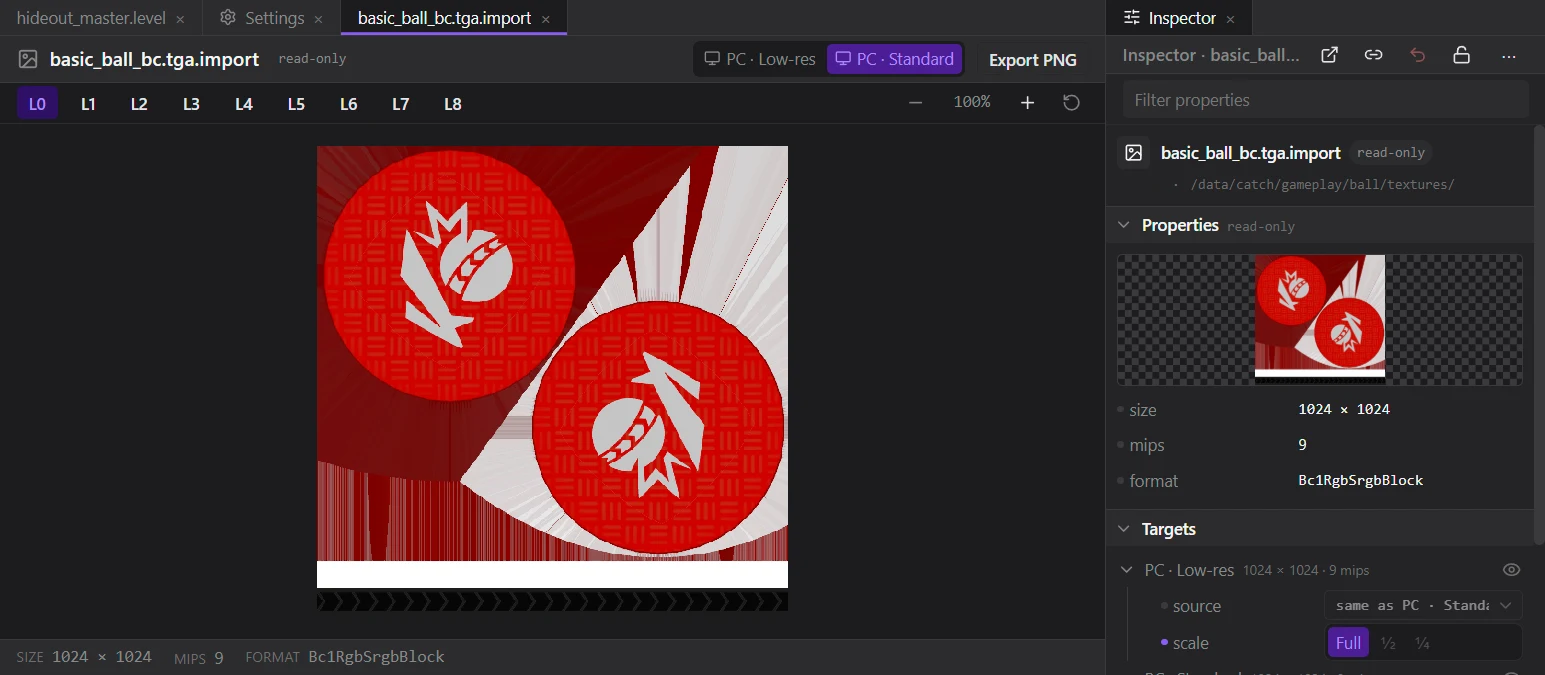
- Mip levels: the smaller copies the game uses at a distance.
- Which target's copy you're looking at.
- Export PNG: save it as an image to paint over.
- Each target's source: its own image, or made from another target's.
To change a texture everywhere it’s used, right-click it and choose Replace▸Replace texture with image…. Your image replaces it at the same place, keeping its identity, so every material using it now shows your image.
Per-target sources
Section titled “Per-target sources”Each target needs its own copy of a texture, and the Inspector’s Targets section says where each copy comes from:
- same as another target, at full, half or quarter size; or
- its own image.
By default the PC · Low-res copy is made from the PC · Standard image. If a texture can’t be made that way, Studio says so and asks for an image of its own. Changing one target’s source leaves every other target untouched.
Where to go next
Section titled “Where to go next”- Tutorial: Recolour a ball.
- Animation in Studio.